




The Sunrise Launcher is here, and 1.0.1 fixes Play on Windows
Sunrise's first launcher sets the game up from your own copy of Minecraft, keeps itself up to date, and starts single player or a server. Version 1.0.1 fixes Play on Windows.
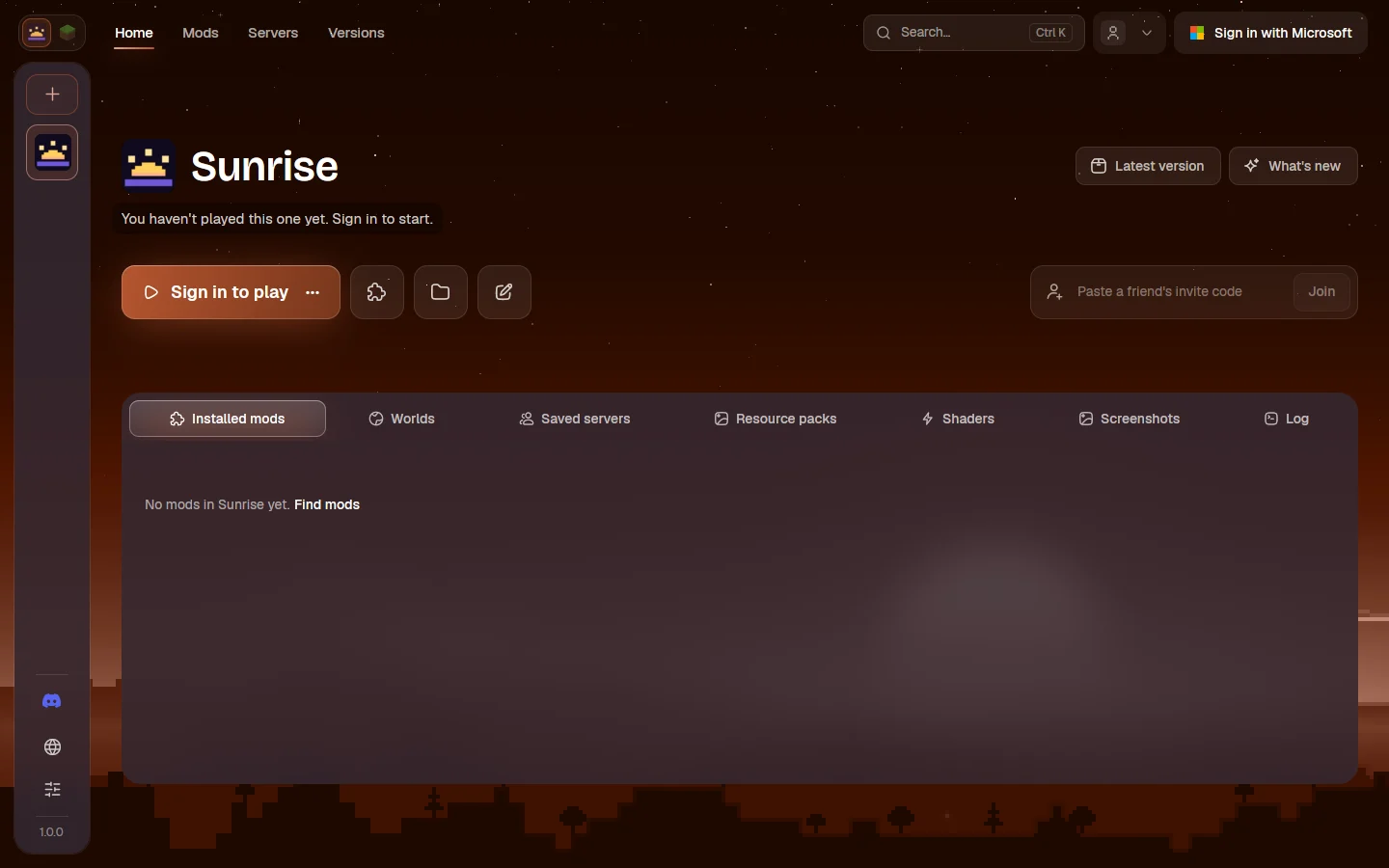
The Sunrise Launcher is out. It's the easiest way to play Sunrise: it installs the game, sets it up from the copy of Minecraft: Java Edition you already own, keeps itself and the game up to date, and starts the game or a dedicated server for you.
On Windows? Update to 1.0.1
In 1.0.0, Play on Windows stopped straight away with exit code 78 and the game never opened. 1.0.1 fixes it (#2035). Linux and macOS were not affected.
The launcher updates itself. To get 1.0.1 right away, open Settings › Updates and choose Check now. You can also download it again from the download page.
1.0.1 also makes signing in sturdier: if a saved sign-in no longer works, the launcher now asks you to sign in again instead of showing an error about its app registration (#1991), and Play from the window and from the command line hand your account to the game the same way (#1993).
What you get
- The game, set up for you. The launcher downloads the current Sunrise build for your computer and prepares the game's resources from your own Minecraft files.
- Signed updates. Every Sunrise build and launcher release is signed. The launcher checks for updates on its own and installs only builds that carry Sunrise's signature.
- Single player and servers. Start a world, or run a dedicated server from the same place.
- No ads, no shop. The launcher has no paid features, store or advertisements.
Get it
Get it from the download page, or from the 1.0.1 release page:
- Windows (x64):
sunrise-launcher-setup.exe, or the.zip. - Linux (x86_64):
sunrise-launcher-linux-x86_64.AppImage. Make it executable and run it. A.tar.gzis there too. - macOS (Apple silicon):
sunrise-launcher-macos-arm64.dmg. Drag Sunrise Launcher to Applications.
You need a Microsoft account that owns Minecraft: Java Edition.
Good to know
- Pre-release. The launcher is an early release: 1.0.0 and 1.0.1 are marked pre-release on GitHub.
- Signing in. For now, sign-in goes through the Starling launcher's approved Microsoft app, with its owner's permission, so Microsoft's sign-in page names Starling. Your account is stored by the Sunrise Launcher under its own name. Mojang has approved Sunrise's own Microsoft app, and sign-in moves to it in a future launcher update; after that update, sign in once more.
- Windows will likely show a SmartScreen or unknown-publisher warning: the launcher isn't Authenticode-signed yet.
- macOS: the app is signed ad hoc and not notarized yet. Open it once, then allow it under System Settings › Privacy & Security › Open Anyway.
- Checking your download. The release page explains how to check the files against Sunrise's signature.
Thank you
To everyone who tried the first builds and told us what broke: thank you.